September 29, 2026
Nobe OmniScope Pro · Live Pack
If you're working from a DIT cart, inside an OB van, in a studio, on a flypack system or supporting a live multi-camera production, there's one thing you can't afford to lose sight of: the signal.
Live production moves quickly. You're dealing with multiple cameras and feeds, changing exposure and focus, color matching, signal routing, audio levels and technical requirements all at once. A reference monitor gives you an essential view of the image, but it doesn't tell you everything that's happening inside the signal. That's where scopes come in.
For DITs, shader operators, colorists and broadcast engineers, scopes provide objective information that complements what you see on screen. Nobe OmniScope Pro provides the professional scope tools for analyzing those signals, while Live Pack extends OmniScope Pro with tools designed specifically for real-time, on-set and live production workflows.
From camera shading and matching to multi-input monitoring, recording, SDI routing and live audio monitoring, Live Pack brings more of the tools needed for a live monitoring station into one application.
In an OB van, studio or flypack, Nobe OmniScope can be used as a software scope station for camera shading, camera matching and SDI monitoring.
The workflow starts with connecting the camera, router or production switcher output to a supported capture device. After connecting, you can select the required input in OmniScope and verify that the feed and signal format are being received correctly.
Signal range is another important part of the setup. Before judging levels on a waveform or other scope, you need to make sure the input's signal range matches the source and that the scopes are displaying the appropriate Video or Full range.
Once the signal is confirmed, you can build your custom monitoring layout around the tools you need: keeping the selected camera picture alongside a waveform and vectorscope for exposure, channel balance and color comparison. These layouts can then be saved and reused as presets, helping create a consistent monitoring setup across shows.
For DITs and OB operators, this means OmniScope can become a part of the actual monitoring station.
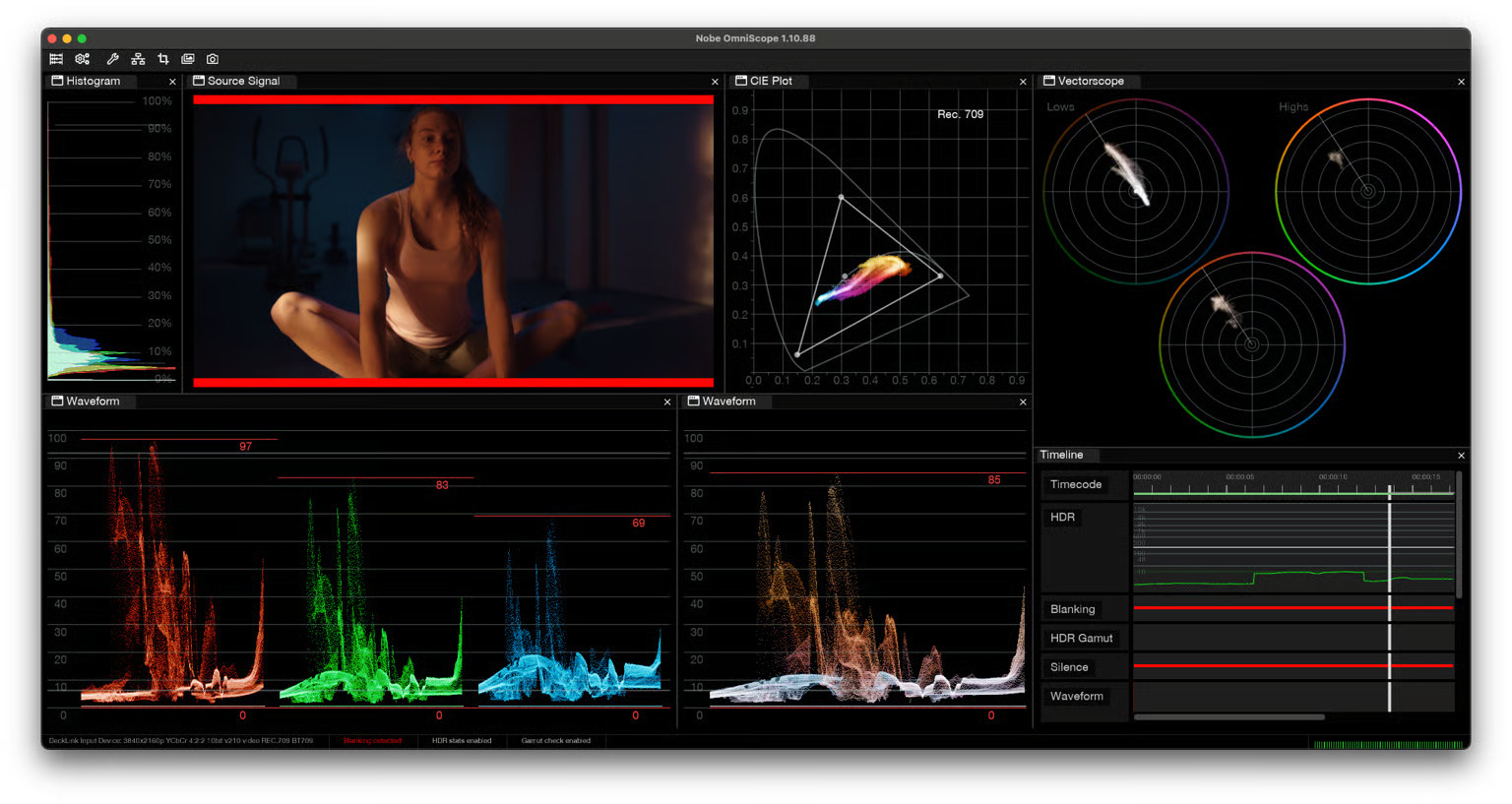
Waveform, vectorscope, histogram and other signal monitoring tools
Multi-camera productions create a completely different monitoring challenge. You don’t just need to understand one signal - you need to monitor and compare several of them.
OmniScope Pro already supports multiple inputs, allowing you to monitor different camera feeds and sources within the same workflow. With Live Pack, you can take those inputs a step further with configurable composite grids, allowing multiple feeds to be arranged together in layouts such as 1x2, 2x2, 2x3 and 2x4.
This makes it easier to compare cameras, identify differences between feeds and keep an eye on multiple sources without constantly switching between individual windows.
For an OB van or multi-camera DIT workflow, having several feeds visible at once can make it much easier to maintain an overview while still being able to inspect an individual source in detail.
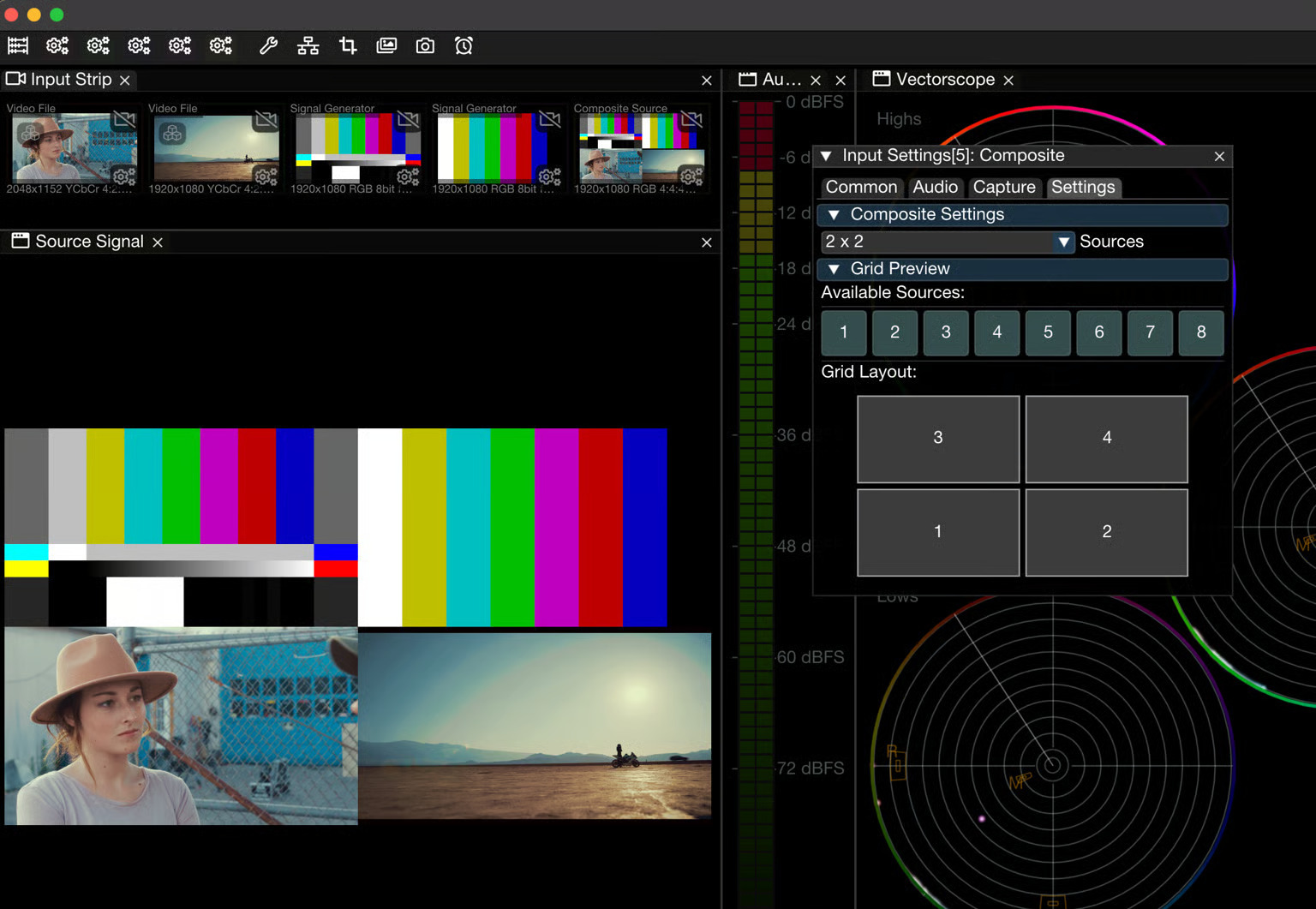
2x2 Composite view
Camera consistency is important when multiple cameras are covering the same production.
OmniScope can combine the picture with waveform and vectorscope displays to help operators compare exposure, channel balance and color between cameras.
A useful workflow is to capture a snapshot of a reference camera and use it to compare another camera under comparable lighting, framing and scene conditions. With Live Pack, snapshots can also be used as sources for comparison, while Composite Input Sources provide an overview of several live feeds.
This can help with:
For shader operators and DITs, the combination of the live picture, objective scopes and reference images provides multiple ways to evaluate whether cameras are staying consistent.
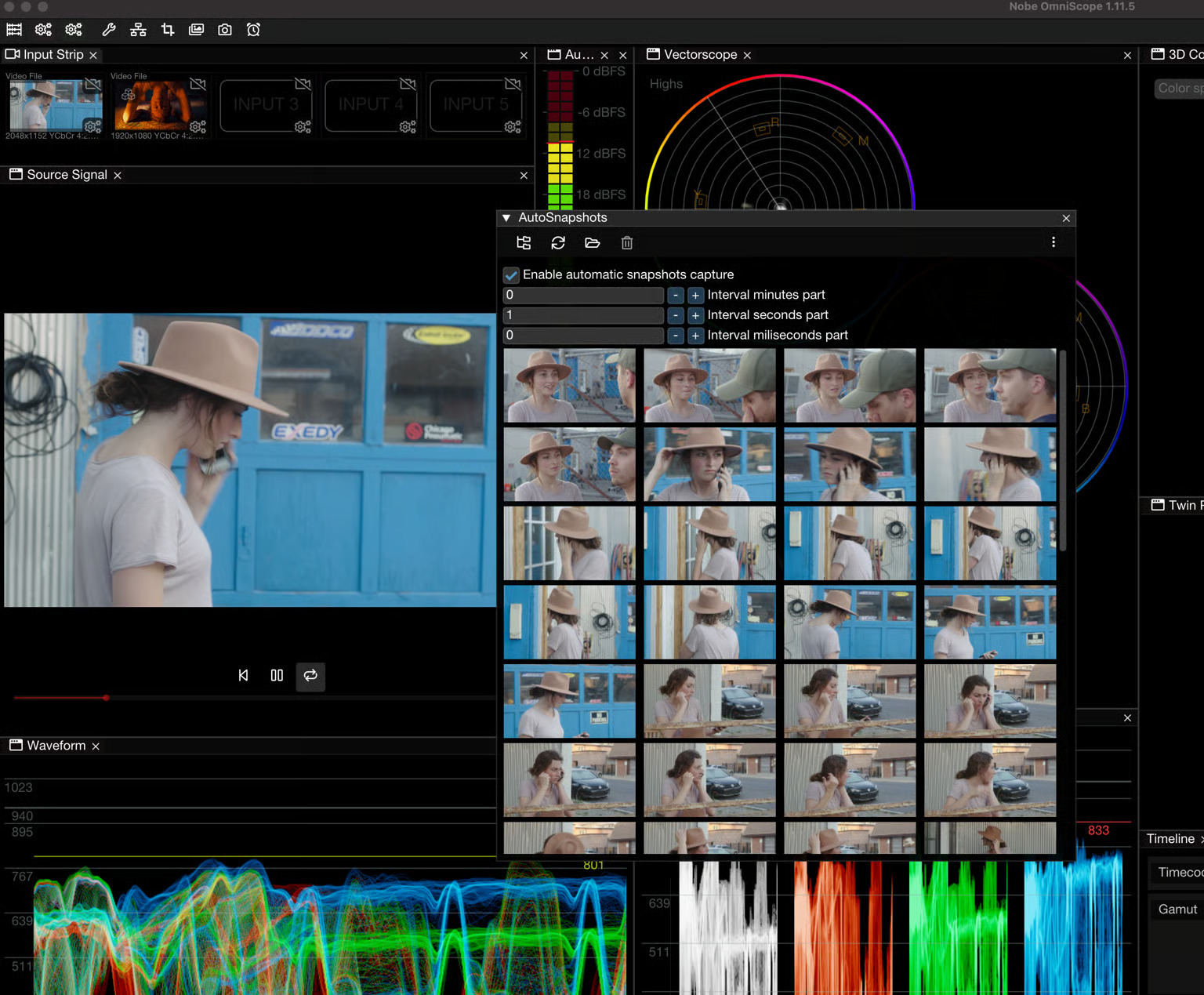
Automatic snapshotting using custom intervals from live feed
Exposure and color aren't the only things that need checking.
When cameras are moving, lenses are changing and subjects are constantly shifting, focus can become just as important.
Live Pack includes real-time Focus Peaking, with adjustable thresholds and two peaking modes: Normal and Enhanced Edges.
This provides a visual way to check sharpness directly from the incoming signal, which is useful for DITs working on set as well as operators monitoring live camera feeds.
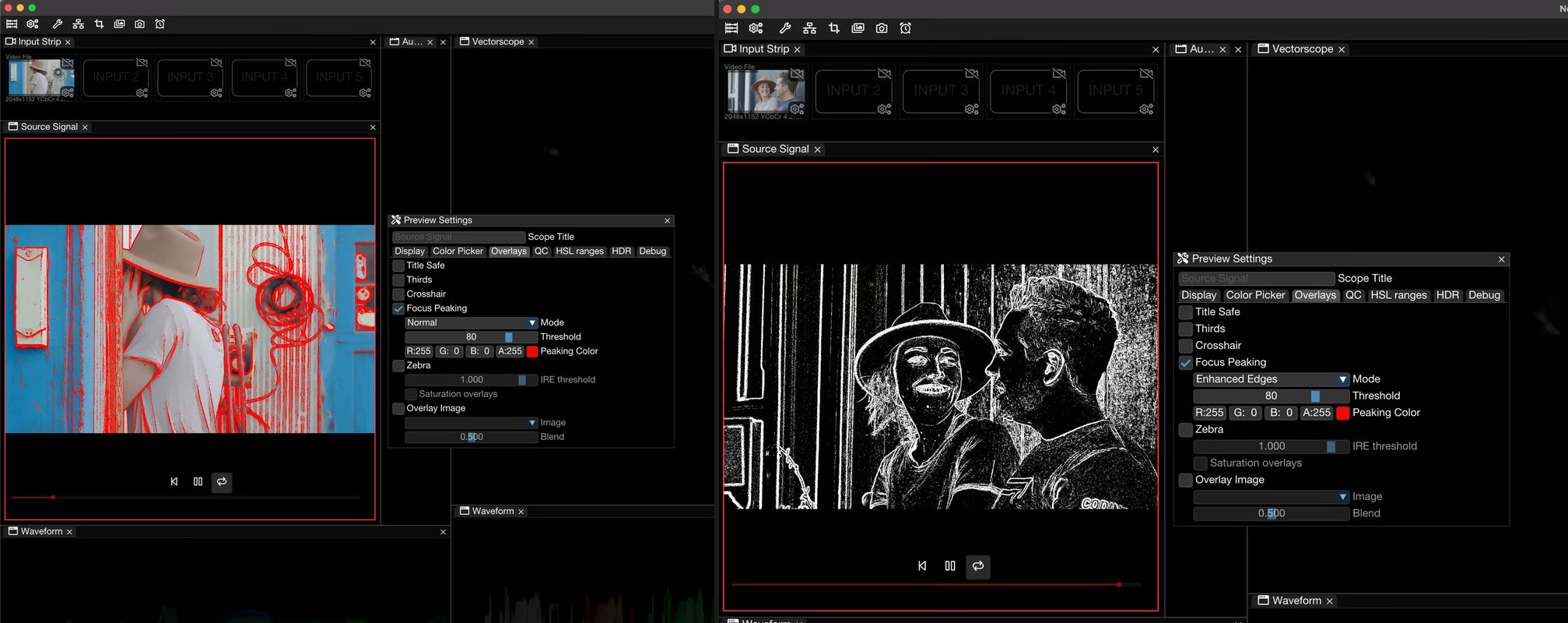
Focus Peaking in Normal mode on the left and Enhanced Edges on the right
Sometimes monitoring isn't enough. You may need to capture what happened.
Live Pack allows live inputs to be recorded directly to disk in H.264, HEVC or ProRes, with configurable codec, resolution and filename settings for each input. Recording can be done using keyboard shortcuts or a Stream Deck.
H.264 and HEVC recording are supported on both macOS and Windows, while ProRes recording is macOS-only. Recording supports 720p and 1080p, with higher-resolution inputs automatically scaled down.
Recording can be useful for:
For production teams, having recording available within the same monitoring environment means you don't necessarily need to use another application just to capture a feed.
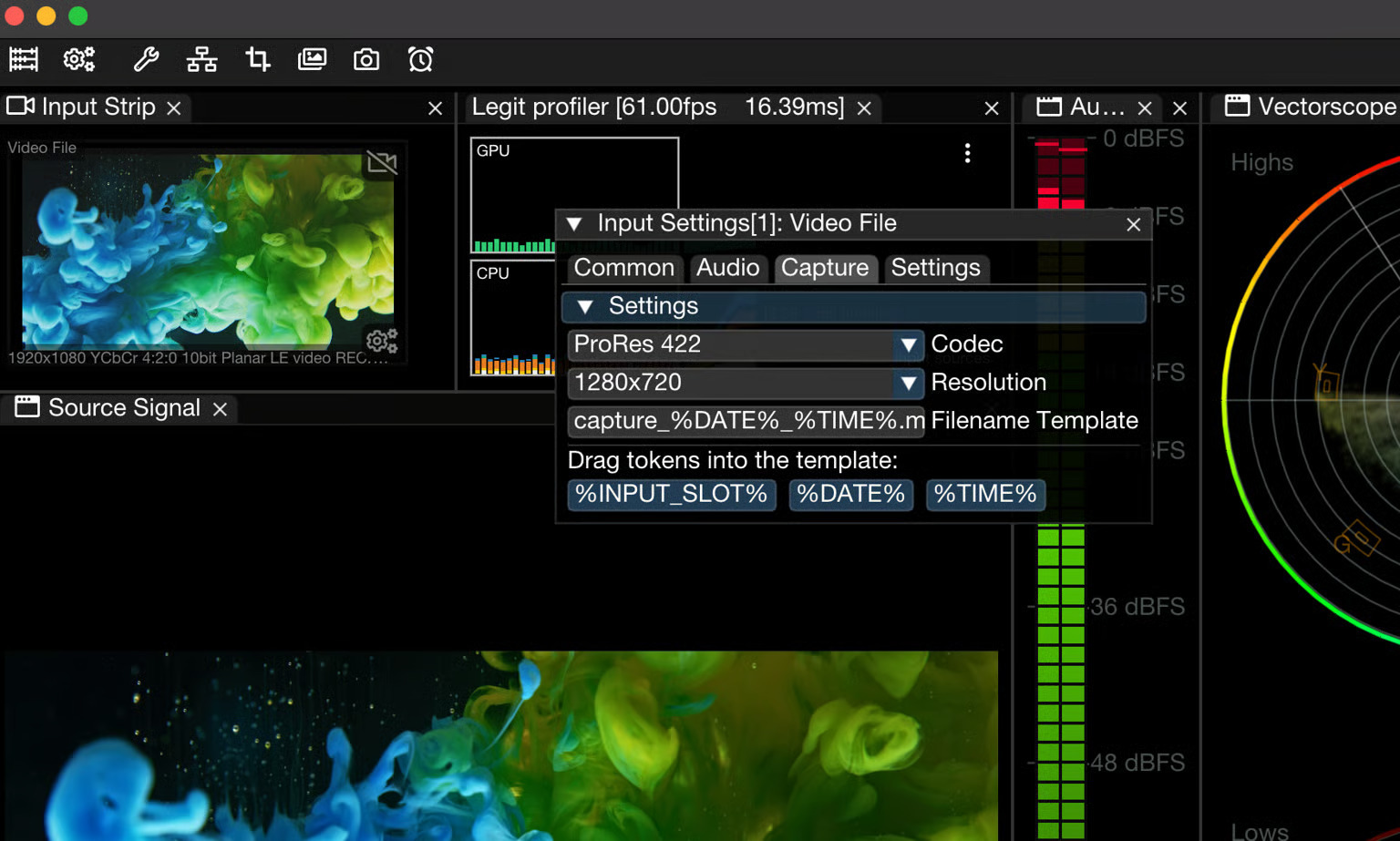
Recording to file with ProRes 422 at 1280×720, using a custom filename template
For DITs using Pomfort Livegrade, signal routing can become another part of the workflow to manage.
Live Pack provides native Livegrade integration, allowing OmniScope to receive the color-graded signal directly through GPU signal sharing rather than requiring a separate SDI loopback.
This means a DIT can run OmniScope and Livegrade on the same computer and analyze the graded signal without adding another hardware path to the setup.
Livegrade integration requires Livegrade 7.1 or later, with two GPU-shared streams included as standard.
For multi-camera events and live production workflows, reducing additional cabling and hardware can also help simplify the overall monitoring system.
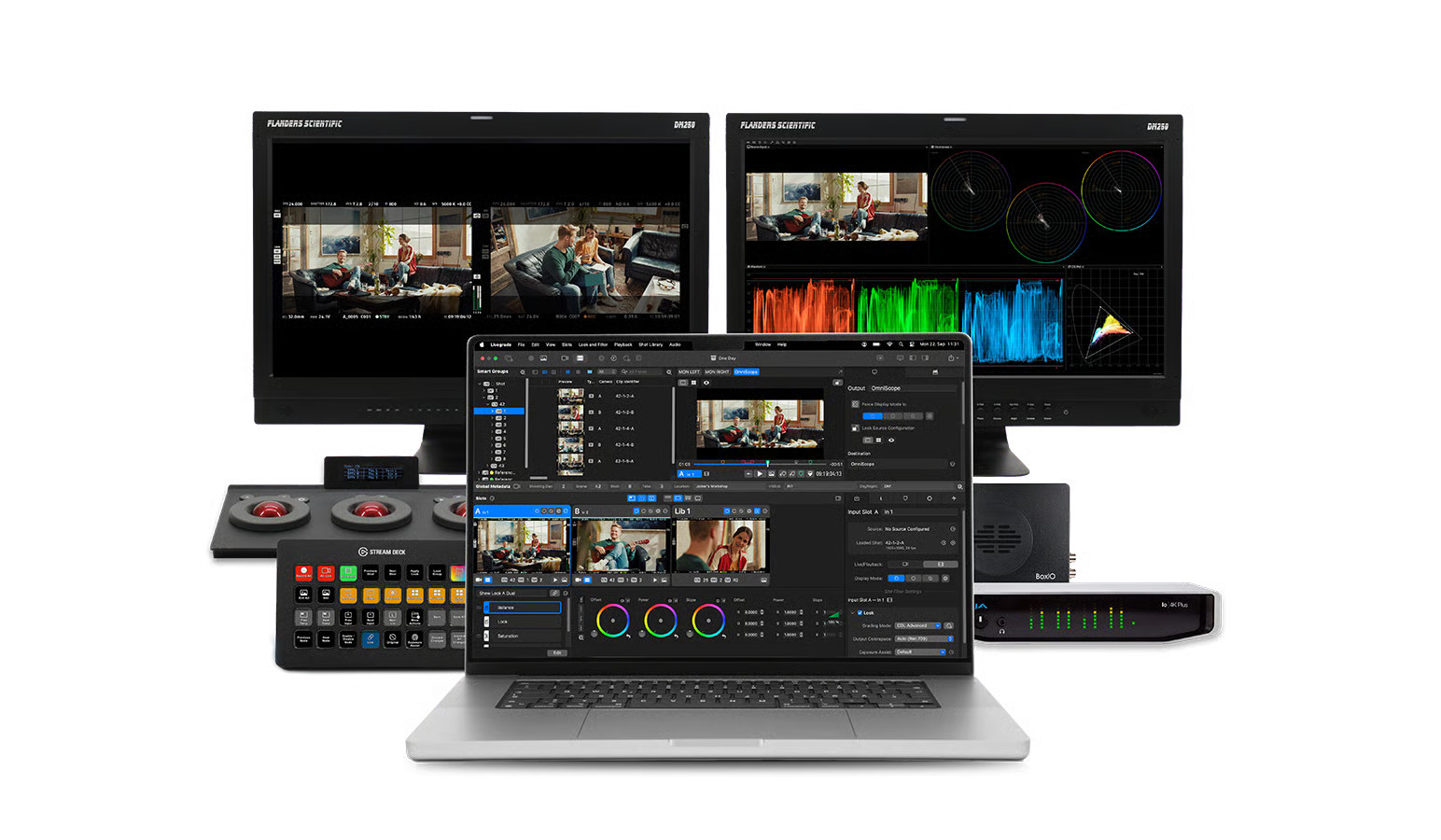
Livegrade integration
Monitoring doesn't need to end with looking at the signal inside the application.
Live Pack adds SDI Output through supported Blackmagic Design DeckLink and UltraStudio hardware, allowing you to send either the selected camera image or the complete OmniScope view with scopes to another monitor or device.
This can be particularly useful on set or in an OB van when you need to share the scopes with another member of the team, provide confidence monitoring, or integrate OmniScope into a larger live production monitoring and signal-routing setup.
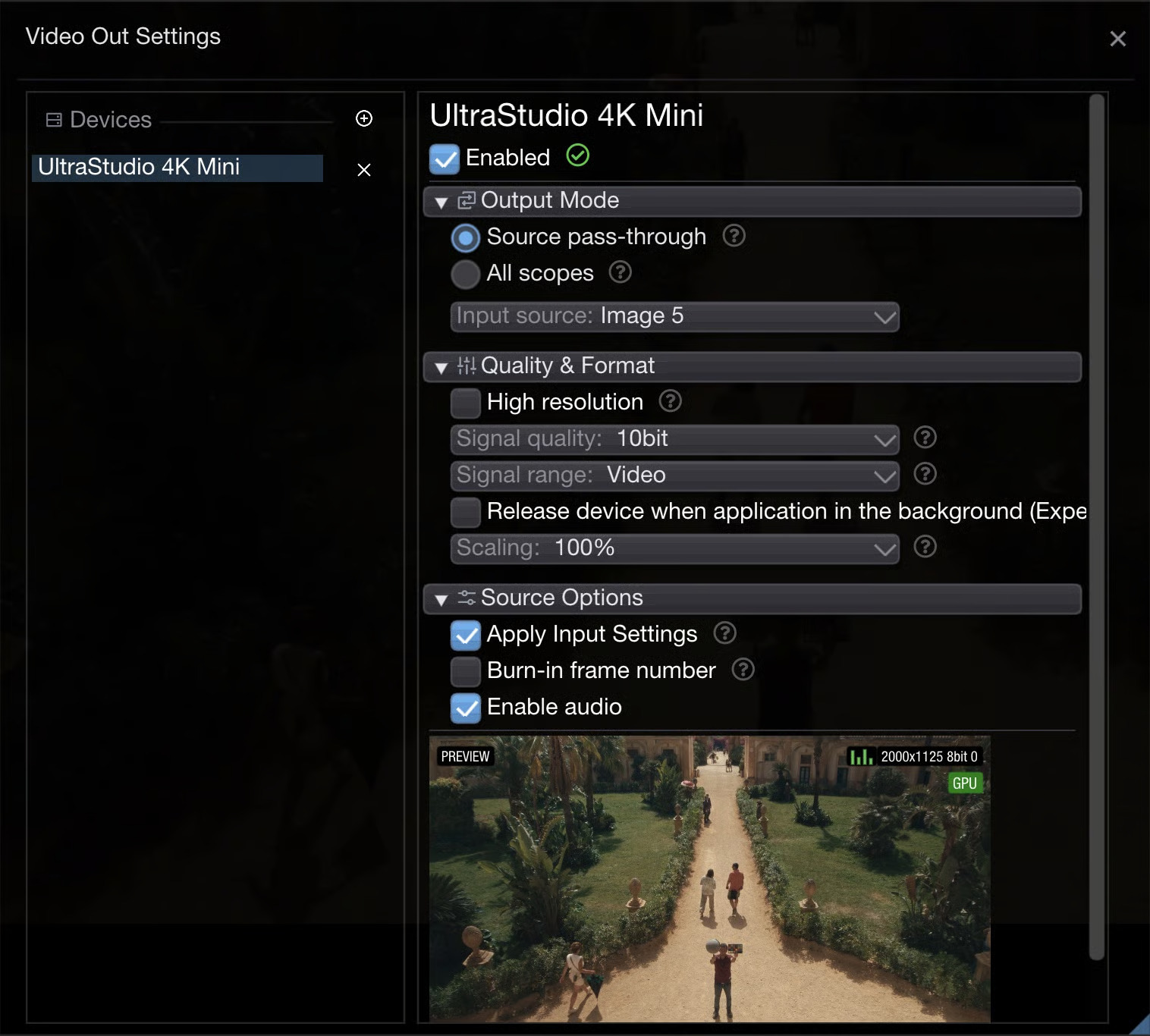
SDI output using Blackmagic Design UltraStudio 4K Mini
Live production isn't only about the picture.
Live Pack also includes loudness monitoring based on EBU R128 and ATSC A/85 standards, with real-time visualization of Momentary, Short-Term and Integrated loudness levels.
This brings another part of the live signal into the same monitoring environment, allowing operators to keep an eye on video and audio without relying on completely separate tools for every part of the workflow.
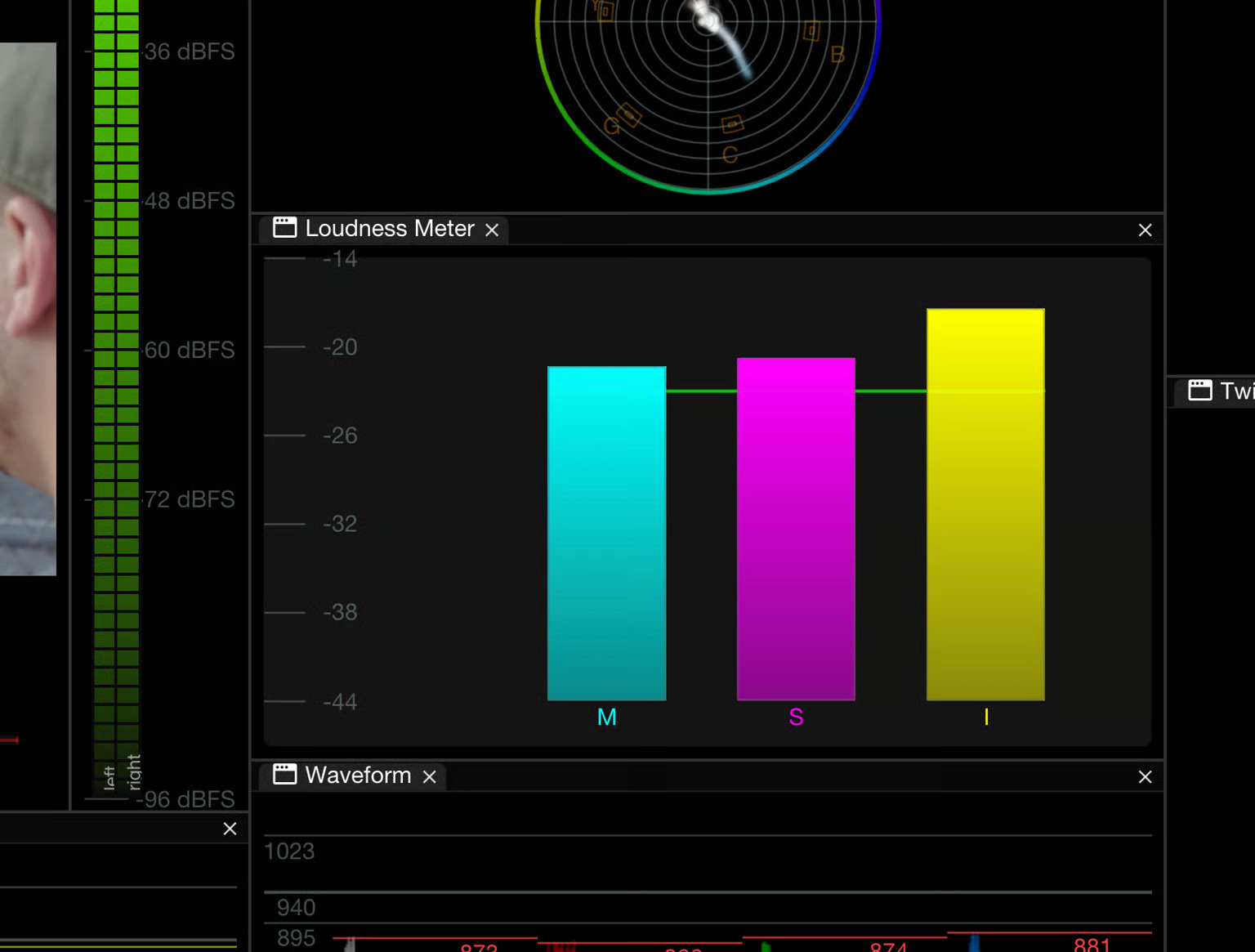
Loudness Meter bars
The important thing about Live Pack isn't that it replaces the professional scopes already available in OmniScope. It extends them for real-time workflows.
OmniScope Pro provides tools including waveform, vectorscope, histogram, CIE, HDR scopes and False Color for analyzing video signals. Live Pack adds the production-focused features needed when those signals are coming from live cameras, routers and production systems.
A typical workflow might look like this:
Connect the camera signal → verify the format and range → build your monitoring layout → check exposure and color → compare cameras → monitor focus → record when needed → route signals back out.
You can find more details on setting up this workflow in the OmniScope Outside Broadcast setup guide.
For a DIT, that could mean combining signal analysis, camera matching, Focus Peaking, Livegrade integration, recording and SDI output on the cart.
For an OB van or live production team, it could mean monitoring multiple feeds, comparing cameras, checking loudness and routing signals from the same application.
And because the underlying scope tools remain at the center of the workflow, the same approach can carry from the set or OB environment through to the grading suite.
Before the production starts, take a few minutes to make sure your OmniScope setup is ready for the demands of the show:
If you're a DIT, shader operator, colorist, broadcast engineer or part of a live production team, Live Pack adds a set of tools designed to extend OmniScope Pro beyond traditional scope monitoring.
From multi-camera monitoring and camera matching to Livegrade integration, recording, Focus Peaking, loudness monitoring and SDI output, it provides a flexible monitoring environment for productions where understanding the signal is critical.
Explore the full Live Pack introduction or OmniScope's Outside Broadcast setup guide to see how it can fit into your workflow.

