Bake your DaVinci Resolve® color corrections into a portable .cube LUT file with a single keystroke. Load it into LiveGrade, Flanders BoxIO, TVLogic IS-Mini, or any LUT-compatible tool.
 macOS 13+
 Windows 10+
Works with DaVinci Resolve Studio (scripting API required)
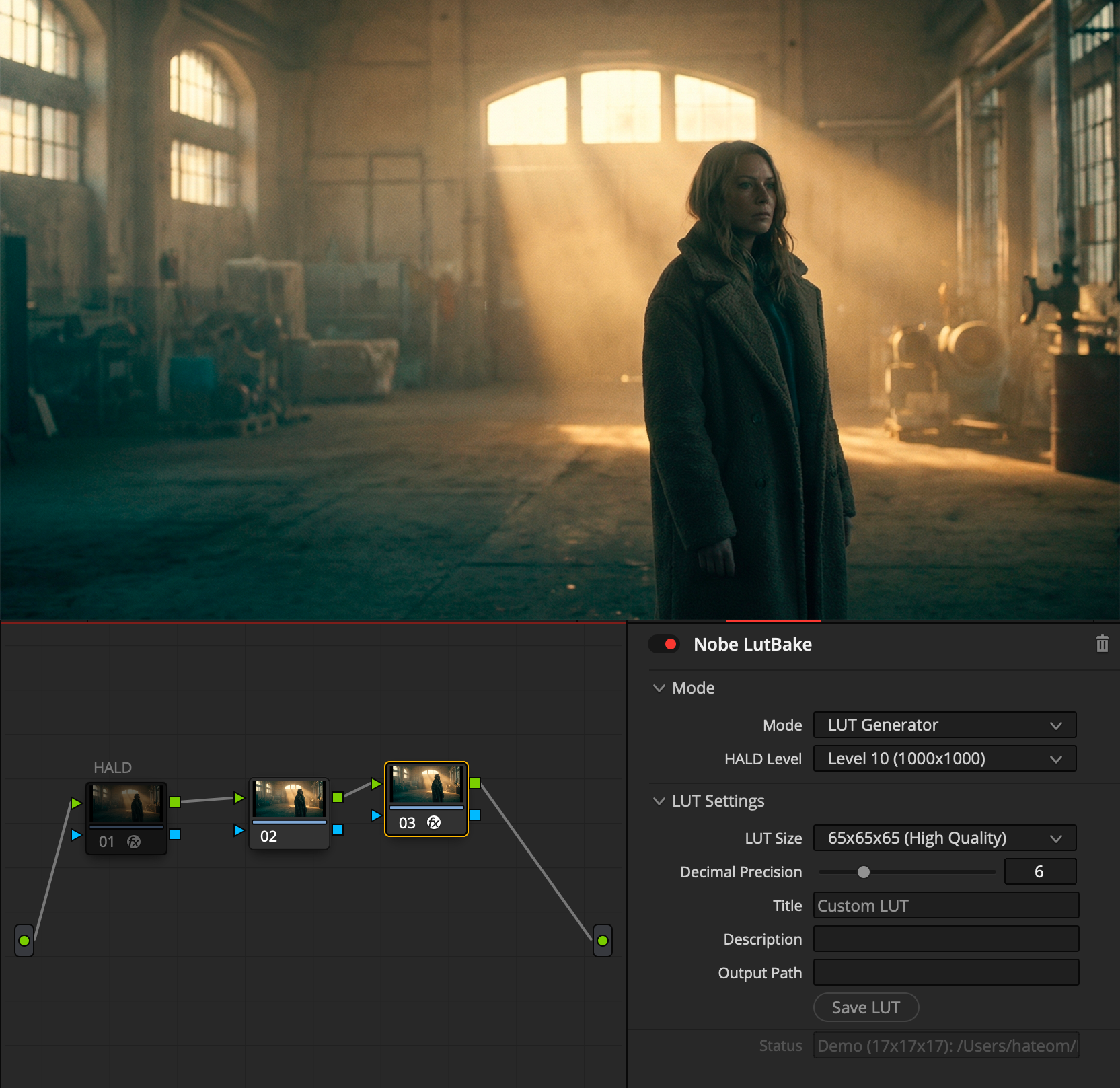
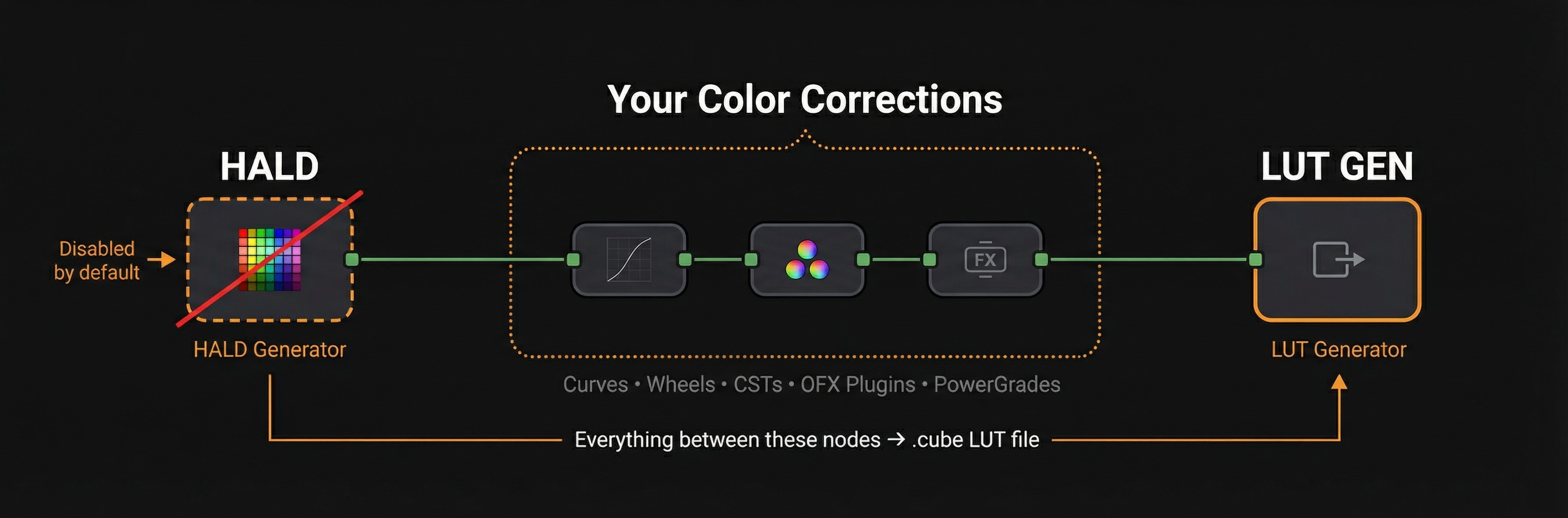
A simple 4-step workflow that captures your entire node tree as a portable 3D LUT file.
Place HALD Generator and LUT Generator nodes around your corrections
Apply your color grading — curves, wheels, LUTs, anything in between
Hit your global keyboard shortcut to trigger LUT capture from anywhere
Your .cube file is saved and ready to use, with optional DRX still export
Nobe LutBake turns DaVinci Resolve into a LUT authoring tool. Here's how professionals use it.
Use Resolve as a software LUT box in your live color pipeline. Grade live footage with Resolve's color tools and node graphs — then capture the result as a 3D LUT and load it into LiveGrade, Teradek COLR, Flanders BoxIO, TVLogic IS-Mini, or any LUT-based device. Resolve stays in the loop for its superior grading tools without being the primary switching or playout tool.
Design looks in Resolve and export them as camera LUTs for on-set monitoring. Iterate faster than manual LUT baking workflows — adjust your grade, press a key, and the updated LUT is ready for your video village, director's monitor, or camera preview output.
Replace heavy OFX plugin chains with a single baked LUT for the same look at a fraction of the render cost. Useful when stacking multiple plugins creates playback issues — bake the result into a LUT and free up your GPU.
Capture any grade as a portable .cube file for use in any LUT-compatible software. Share looks across NLEs, deliver LUTs to clients, build a personal LUT library, or create LUT packs for distribution.
Resolve can export LUTs. Here's why professionals choose LutBake instead.
Up to 100×100×100 cube resolution with native HALD-matching sizes for zero interpolation error. Configurable decimal precision (up to 16 digits). More accurate than Resolve's built-in export.
One global hotkey captures a LUT without touching the mouse or opening any dialogs. Stay in your grading flow — no workflow interruption.
Auto-incrementing filename templates with show, IDT, ODT, and note placeholders. Custom output directory. No manual renaming between captures.
A 3D LUT maps input colors to output colors. Any color correction that transforms RGB values will be captured accurately: curves, color wheels, lift/gamma/gain, HSL qualifiers, color space transforms, and color-based OFX plugins. Effects that depend on spatial information (blur, sharpening, keyers), temporal information (denoise, motion blur), or add texture (grain, lens flares) cannot be represented in a LUT.
Important: Unlike Resolve’s built-in Generate LUT (which auto-bypasses spatial effects), LutBake captures everything between the two nodes. The app automatically detects 40+ spatial tools — including Power Windows, blur, grain, noise reduction, and third-party plugins — before each capture. On DaVinci Resolve 20+, you can auto-disable detected effects and restore them after capture. Post-capture mathematical validation catches anything missed.
One-keystroke LUT capture while grading in DaVinci Resolve.
Everything you need for fast, reliable LUT capture from DaVinci Resolve.
Capture LUTs without leaving Resolve. Works from any app.
17³, 33³, 64³, 65³, or 100³ cube resolution — including native HALD-matching sizes.
Custom filenames with auto-incrementing templates and placeholders.
Stays out of your way in the menu bar (macOS) or system tray (Windows). Always one click away.
Optionally grab a still and export as .drx alongside your LUT.
Sparkle-powered automatic updates keep you on the latest version.
One-click plugin installation via symlink. Always up to date.
Auto-detects blur, grain, Power Windows, and 40+ spatial effects. Auto-disable & restore on Resolve 20+.
A lightweight app with the controls you need and nothing you don't.

Menu bar popup
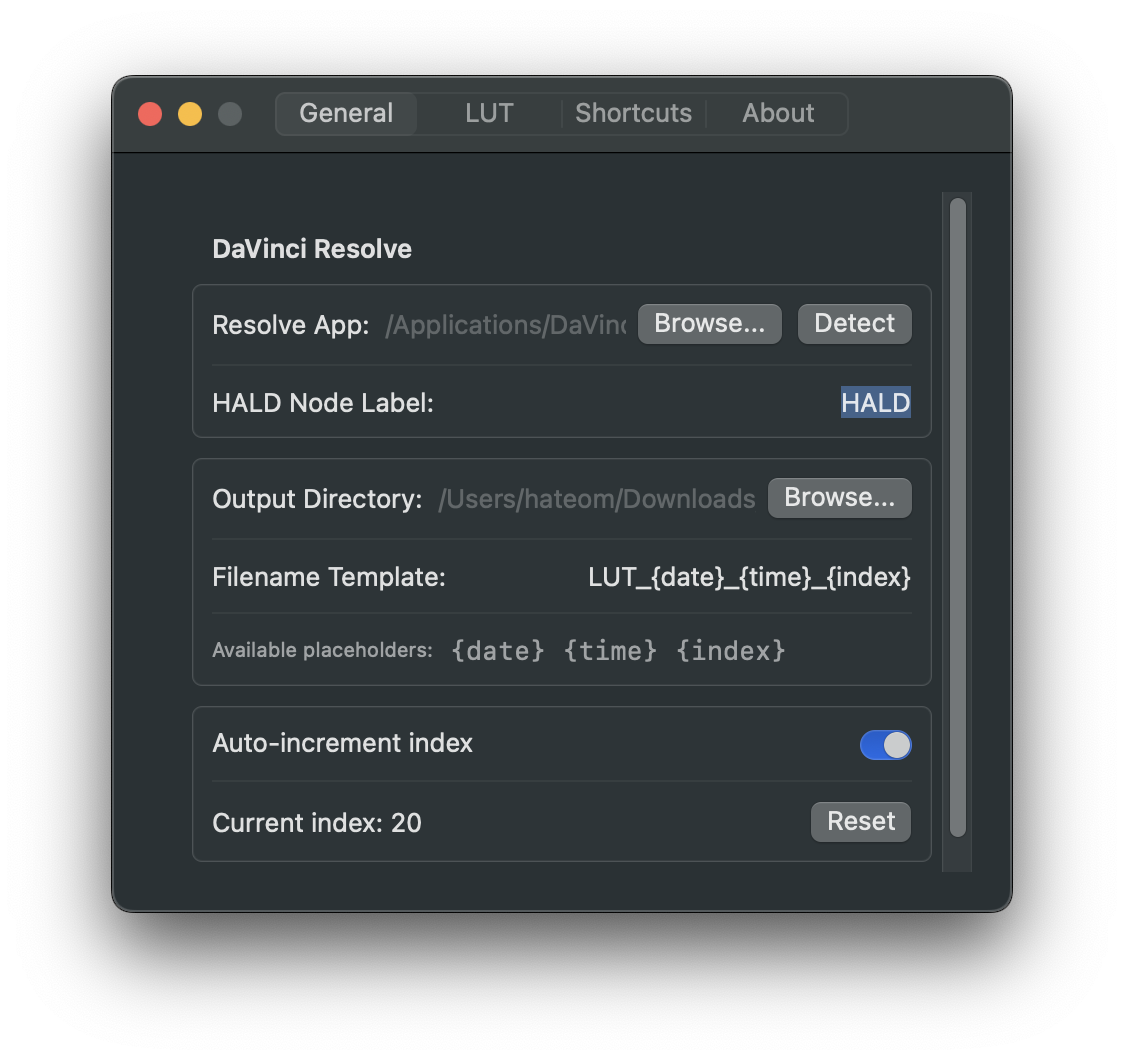
General settings

LUT settings

Keyboard shortcuts
Unlock full LUT resolution and professional output.
macOS
Windows
macOS
Windows
Each license covers 1 seat (one machine at a time, macOS or Windows). You can deactivate on one machine and activate on another.
Activate in Settings → License using your email and license key.
No subscription — one-time purchase with free updates.
Download, install, and start capturing LUTs in under 5 minutes.
macOS 13+ / Windows 10+ · DaVinci Resolve Studio 19+ · Free
Requirements: macOS 13+ or Windows 10+ · Python 3 · DaVinci Resolve Studio (scripting API required) · Free version of Resolve does not support external scripting

